
How to Fetch CSS Selector & XPath of Any Field
Learn how to easily find and copy CSS selectors and XPath expressions for any element on a webpage using browser DevTools.
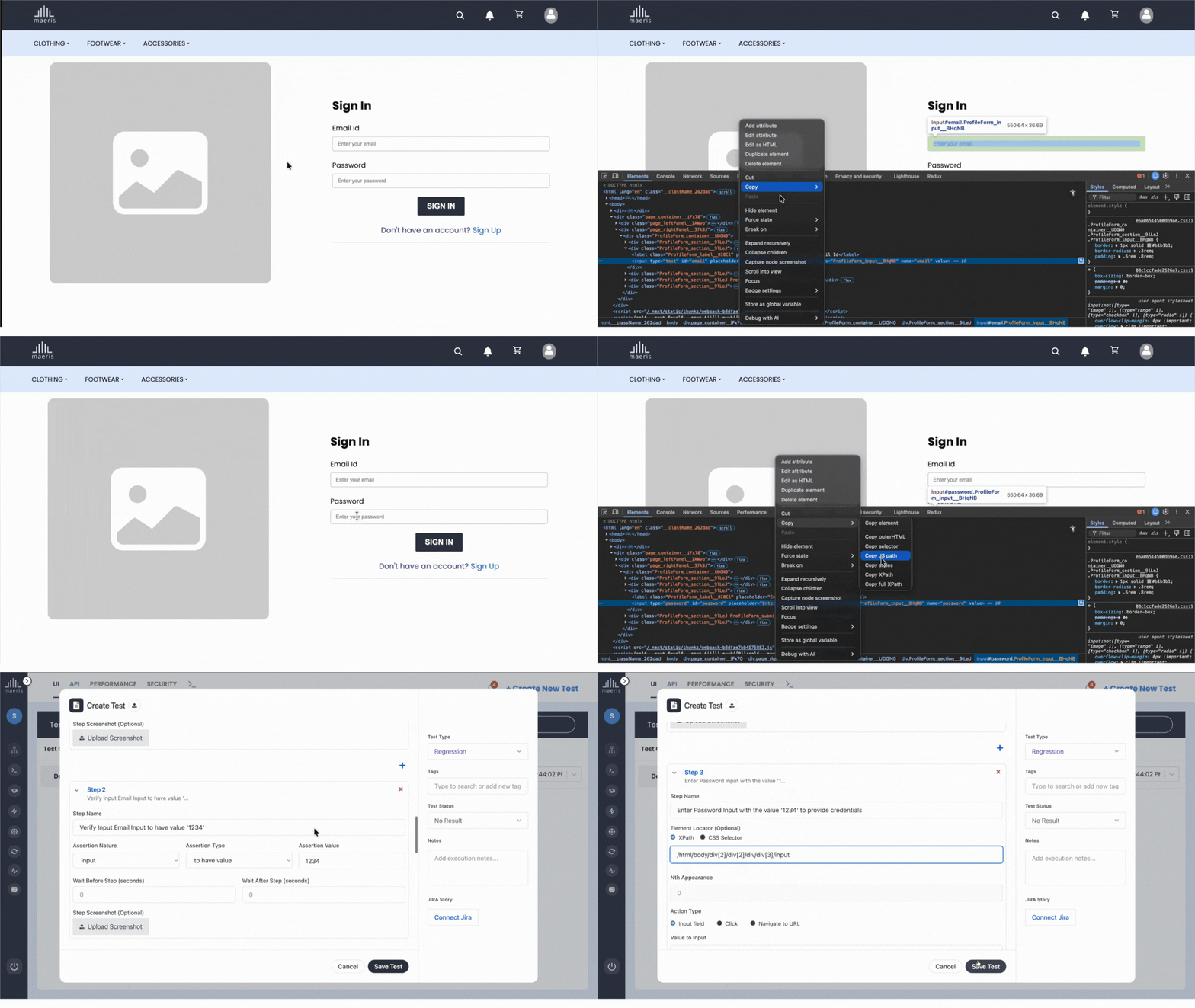
What are CSS Selectors and XPath
CSS selectors and XPath are two different ways to identify and locate elements on a webpage. They are essential tools for web automation, testing, and scraping.
CSS Selectors
CSS selectors are patterns used to select HTML elements. They are the same selectors used in CSS styling, making them familiar to web developers. Examples include:
#myId- Selects element with id="myId".myClass- Selects elements with class="myClass"button- Selects all button elementsinput[type="text"]- Selects text input fields
XPath
XPath (XML Path Language) is a query language for selecting nodes from an XML or HTML document. It provides more powerful and flexible element selection capabilities. Examples include:
//button- Selects all button elements//input[@type='text']- Selects text inputs by attribute//div[@class='container']- Selects divs with specific class//button[contains(text(), 'Submit')]- Selects button containing "Submit" text
How to Open DevTools
Developer Tools (DevTools) are built into all modern browsers and provide powerful debugging and inspection capabilities. Here's how to open them:
Keyboard Shortcuts
- Windows/Linux: Press F12 or Ctrl + Shift + I
- Mac: Press Cmd + Option + I or Cmd + Option + C
Alternative Methods
- Right-click on any element and select "Inspect" or "Inspect Element"
- Go to browser menu → More Tools → Developer Tools
- In Chrome/Edge: Menu (⋮) → More Tools → Developer Tools
- In Firefox: Menu (☰) → More Tools → Web Developer Tools
How to Select an Element
Once DevTools is open, you can select any element on the page in several ways:
Method 1: Element Selector Tool
- Click the Element Selector icon (cursor with box) in the top-left of DevTools
- Hover over elements on the page - they will be highlighted
- Click on the element you want to inspect
- The element will be selected in the Elements/Inspector panel
Method 2: Right-Click Inspect
- Right-click directly on the element you want to inspect
- Select "Inspect" or "Inspect Element" from the context menu
- The element will be highlighted in the Elements panel
Method 3: Search in Elements Panel
- In the Elements/Inspector panel, press Ctrl + F (or Cmd + F on Mac)
- Type text, class name, or ID to search for elements
- Navigate through matches to find your element
How to Copy CSS Selector
After selecting an element in DevTools, follow these steps to copy its CSS selector:
Chrome/Edge/Brave
- Right-click on the selected element in the Elements panel
- Hover over "Copy" in the context menu
- Select "Copy selector"
- The CSS selector is now in your clipboard
Firefox
- Right-click on the selected element in the Inspector panel
- Select "Copy" → "CSS Selector"
- The CSS selector is now in your clipboard
Safari
- Right-click on the selected element in the Elements panel
- Select "Copy" → "Copy Selector Path"
- The CSS selector is now in your clipboard
How to Copy XPath
Copying XPath follows a similar process to CSS selectors:
Chrome/Edge/Brave
- Right-click on the selected element in the Elements panel
- Hover over "Copy" in the context menu
- Select "Copy XPath" or "Copy full XPath"
- The XPath expression is now in your clipboard
Firefox
- Right-click on the selected element in the Inspector panel
- Select "Copy" → "XPath"
- The XPath expression is now in your clipboard
Safari
- Right-click on the selected element in the Elements panel
- Select "Copy" → "Copy XPath"
- The XPath expression is now in your clipboard
Tips for Better Selectors
- Prefer IDs: If an element has a unique ID, use it. IDs are the most reliable and fastest selectors (e.g.,
#submit-button). - Avoid overly specific paths: Selectors like
div > div > div > buttonare fragile. Use classes or data attributes instead. - Use data attributes: If you control the HTML, add
data-testidordata-cyattributes for stable selectors. - Combine selectors: Use multiple attributes for more specific targeting (e.g.,
button[type="submit"][class="primary"]). - Test your selectors: Use the browser console to test selectors with
document.querySelector()(CSS) or$x()(XPath in Firefox). - Consider XPath for complex queries: XPath is better for selecting elements based on text content or complex relationships.
- Avoid auto-generated selectors: Browser-generated selectors are often too specific. Simplify them when possible.
- Use relative XPath: Prefer
//buttonover/html/body/div/buttonfor more maintainable code.
Cheat Sheet
| Selector Type | CSS Selector | XPath | Description |
|---|---|---|---|
| ID | #myId | //*[@id='myId'] | Select element by ID |
| Class | .myClass | //*[@class='myClass'] | Select element by class |
| Tag | button | //button | Select all elements of type |
| Attribute | input[type='text'] | //input[@type='text'] | Select by attribute value |
| Descendant | div button | //div//button | Select descendant elements |
| Direct Child | div > button | //div/button | Select direct child |
| Contains Text | button:contains('Submit') | //button[contains(text(), 'Submit')] | Select by text content |
| Multiple Classes | .class1.class2 | //*[contains(@class, 'class1') and contains(@class, 'class2')] | Select element with multiple classes |
| Nth Child | li:nth-child(2) | //li[2] | Select nth child element |
| Starts With | [id^='prefix'] | //*[starts-with(@id, 'prefix')] | Select by attribute prefix |